安装
1. 安装 Windows Terminal 和 PowerShell 7
打开 Windows 商店(Microsoft Store),搜索并安装以下两个软件。
- 搜索并安装 Windows Terminal。这个Windows11默认是安装好了,可以忽略安装。
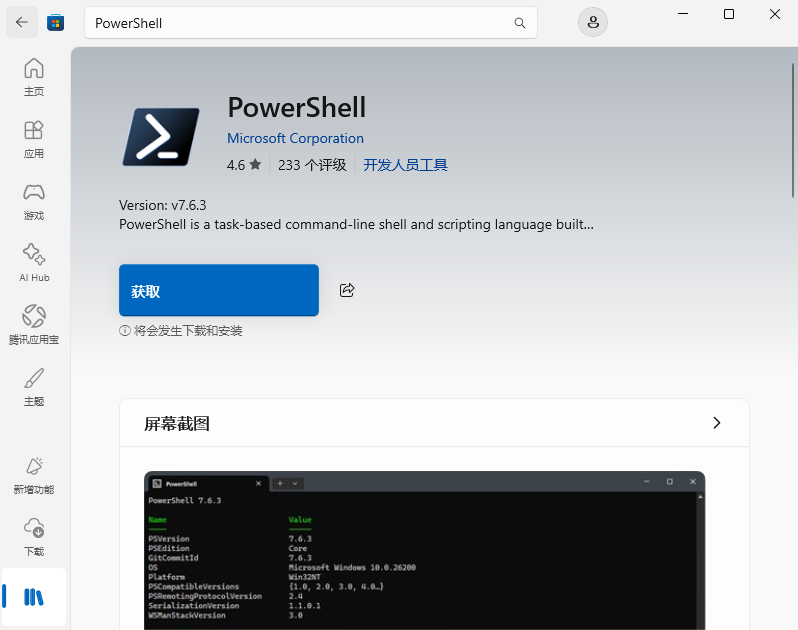
- 搜索并安装 PowerShell (图标是黑色的,不是蓝色的)。
Ps:
对,你截图里的这个就是 PowerShell 7,而且是微软官方发布的版本。
从截图可以确认:
- 发布者:Microsoft Corporation ✅
- 版本:v7.6.3 ✅
- 应用类型:开发人员工具 ✅
它对应的命令是:
pwsh.exe不是 Windows 自带的:
powershell.exe两者不会冲突,会并存:
Windows 11
│
├── Windows PowerShell 5.1
│      命令:powershell.exe
│      路径:
│      C:\Windows\System32\WindowsPowerShell\v1.0\
│
└── PowerShell 7.6.3
       命令:pwsh.exe
       路径:
       C:\Program Files\PowerShell\7\
安装后你可以验证:
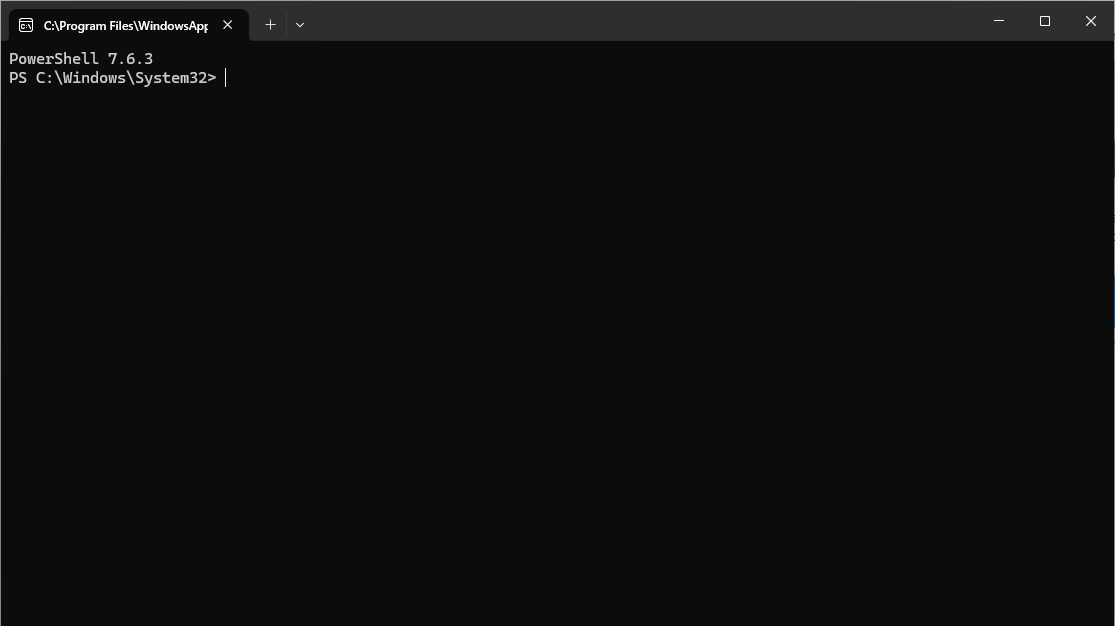
打开新的 PowerShell 7:
$PSVersionTable应该看到:
PSVersion   7.6.3
PSEdition   Core
然后在旧 PowerShell 5.1 里:
$PSVersionTable仍然会显示:
PSVersion   5.1.x
PSEdition   Desktop
不会覆盖,也不会影响系统。
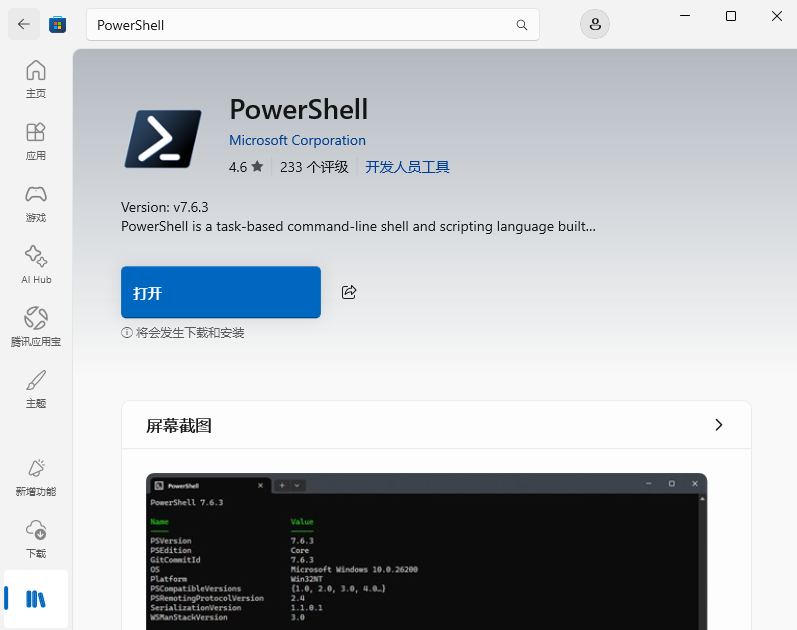
安装完成打开
配置 Windows Terminal
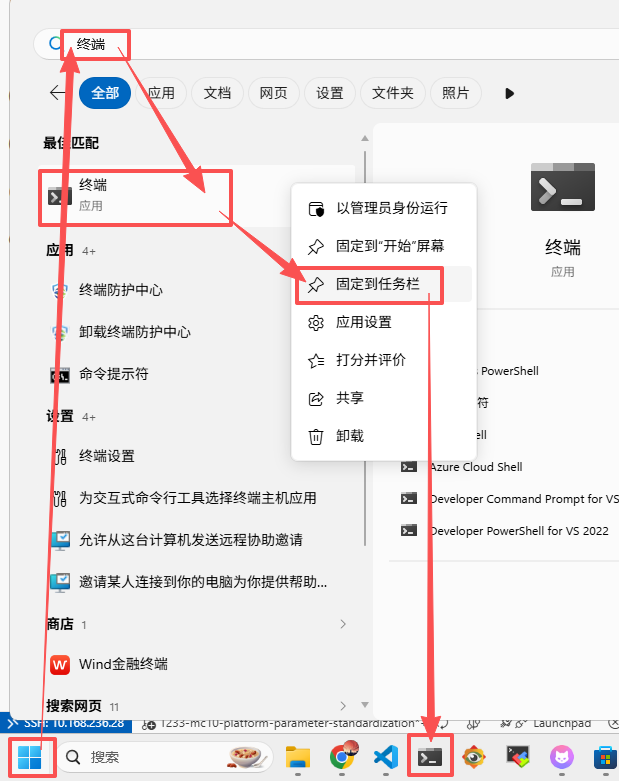
- 搜索“终端”,右键选择“固定到任务栏”。后续使用时,直接从任务栏单击即可打开。
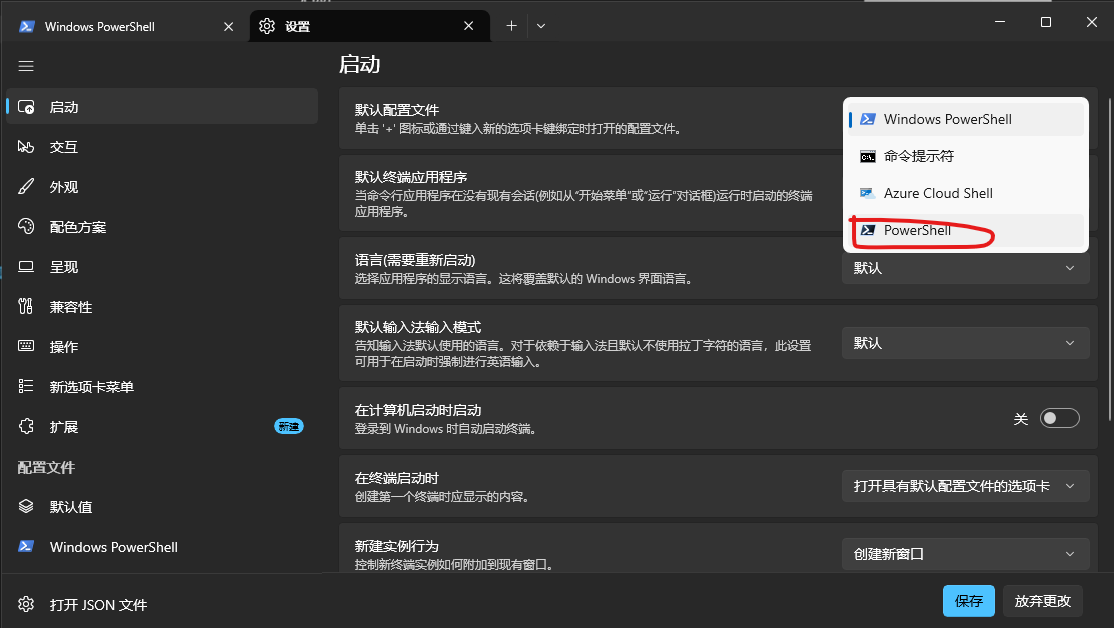
- 打开”终端”,进入设置。将默认配置改为刚安装的 PowerShell,并将启动目录设置为日常工作目录(尽量不要放在 C 盘下)。
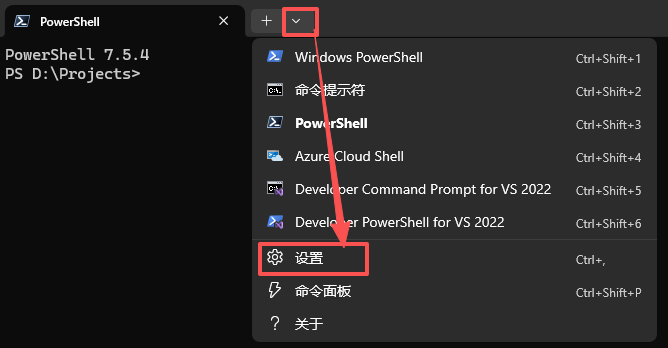
- 修改默认启动
Ps:
